
iOS Certificates & "Unable to Verify"
Why Apple blocks third-party apps and how to safely navigate Developer Mode in iOS 16/17.
Reviewed by Marcus Tan (Infrastructure Analyst) | Last updated:
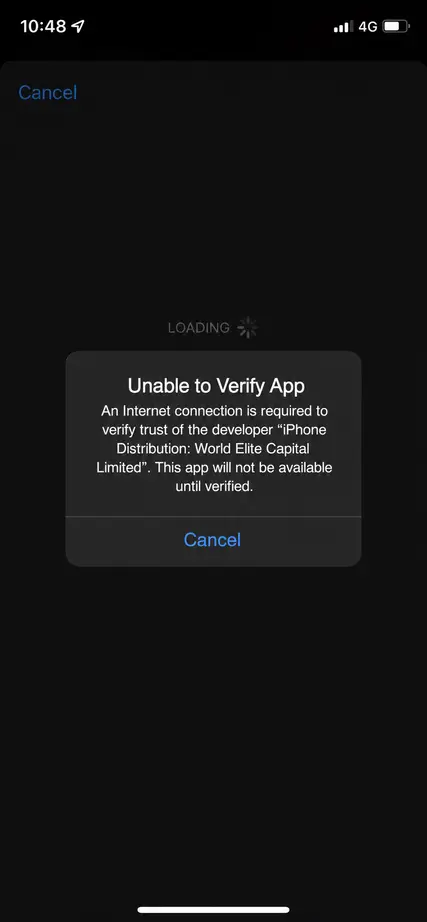
Example of the iOS verification error when a certificate is revoked.
Why Does the App Suddenly Stop Working?
If you play on an iPhone, you've likely seen the dreaded "Unable to Verify App" error. This happens because the app was installed using a third-party Enterprise Developer Certificate instead of going through the official Apple App Store.
Apple constantly scans for these certificates. When they detect a certificate being used to distribute public apps (rather than internal corporate apps), they revoke it. The moment the certificate is revoked, your iPhone automatically blocks the app from launching, even if you were playing it perfectly fine just an hour ago.
This is a standard security feature built into iOS, not a bug with the application itself.
The Fix: Flushing Your Certificate Cache
Simply deleting and reinstalling the app usually doesn't work because iOS aggressively caches the revoked certificate in your network settings. If you don't flush the cache, your iPhone will instantly block the new download. To perform a clean, successful install, you must follow these exact steps to flush the cache:
- Delete the App: Remove the blocked app from your home screen. Do not just offload it; you must completely delete it.
- Clear Safari History: Go to Settings > Safari > Clear History and Website Data. This removes any cached download tokens and prevents Safari from remembering the revoked certificate.
- Toggle Airplane Mode: Turn Airplane Mode on for 10 seconds, then turn it off. This forces your iPhone to disconnect from your telco and grab a fresh DNS connection.
- Re-download: Go to our Download Page and get the newly signed version of the app. The servers generally update the certificate within 24 hours of a revoke.
- Trust the New Profile: Go to Settings > General > VPN & Device Management. You will see a new corporate name. Tap it and press "Trust".
iOS 16+ Developer Mode
If you are on iOS 16 or newer, you also need to enable Developer Mode. Apple added this as an extra security layer.
Go to Settings > Privacy & Security > Developer Mode and toggle it on. Your phone will restart. After it restarts, you can trust the certificate.