
Network Diagnostics (Malaysia)
Solving login timeouts, UDP packet drops, and carrier restrictions.
Reviewed by Marcus Tan (Infrastructure Analyst) | Last updated:
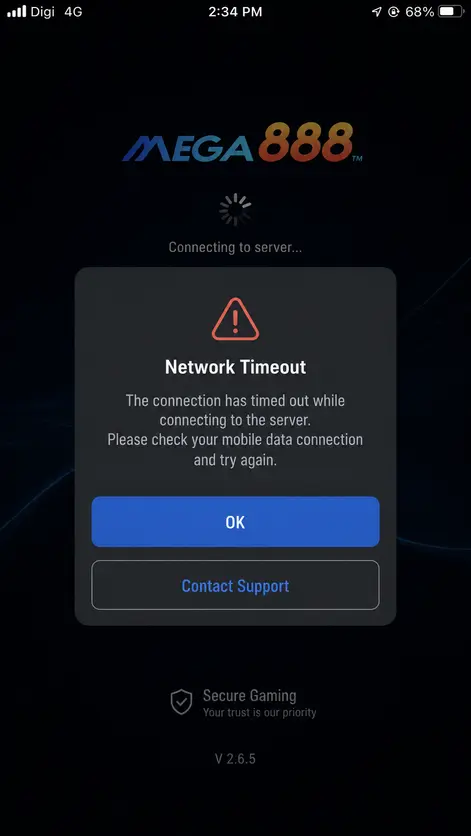
Example of the infinite loading screen caused by dropped UDP packets.
The "WiFi Works, Mobile Data Fails" Phenomenon
The most common technical issue reported to the Mega888 Wiki Review Team is that users can successfully log in while connected to their home Fiber WiFi (such as TM Unifi or Time Fiber), but the app entirely freezes at the 99% loading screen when attempting to use 4G/5G mobile data.
We want to be clear: this is not a bug in the application binary itself. It is a routing and DNS issue specific to Malaysian mobile telecommunication providers blocking the initial server handshake.
Why Telcos Block the Login
Mobile networks like Maxis, Celcom, and U Mobile utilize extremely aggressive DNS filtering and UDP packet shaping to manage bandwidth across their cellular towers. When the Mega888 application tries to execute its initial secure handshake with the offshore gaming servers, these mobile networks often timeout the request because they misclassify the traffic, resulting in the dreaded infinite loading screen.
Why Fiber WiFi Works
Home broadband networks operate on entirely different routing tables. ISPs like TM Unifi and Time Fiber generally have much looser DNS filtering and dedicated, faster international routing paths. Because of this, they allow the application to establish the initial secure connection without dropping any packets.
Primary Fix: The "First Boot" Solution
According to our Mega888 Wiki analysts, if you are stuck on the loading screen using mobile data, you should follow this exact procedure to build the local cache:
- Force Close: Swipe up and completely close the application to kill the stalled process.
- Connect to Fiber: Connect your device to a stable home WiFi network.
- Initial Handshake: Launch the app and log in. Let the lobby fully load. This allows your phone to securely cache the heavy server assets locally.
- Switch Networks: Once you are inside the main lobby, you can safely turn off WiFi. The app will smoothly transition to your mobile data connection without disconnecting.
Note: You usually only need to perform this bypass once after installing a new update or downloading the app for the very first time.
Alternative Fix: Using Cloudflare 1.1.1.1 (WARP)
If you do not have access to a home WiFi network, you can bypass your telco's DNS filters using a secure DNS resolver. We do not recommend using free VPN apps, as they will slow down your connection drastically and cause in-app lag.
Instead, the Mega888Wiki team recommends downloading the free 1.1.1.1: Faster Internet app by Cloudflare (available on both Android and iOS). Turning on the WARP feature encrypts your DNS requests, preventing Maxis or Celcom from dropping the login handshake packets, allowing you to load the app directly on mobile data.